We spend hours every week sitting in virtual meetings, only to spend more hours doing the manual administrative work afterward: summarizing what happened, tracking down action items, and manually logging those notes into a CRM like HubSpot, Salesforce, or Pipedrive.
By utilizing a smart 2026 AI workflow, you can fully automate this tedious process. The moment your meeting ends, an AI model can extract the core discussion points, isolate the exact action items, assign them to team members, and update your CRM records automatically—all while you grab your next cup of coffee.
Here is the exact step-by-step blueprint to build this automated system.
The Automation Stack
To set up this meeting-to-CRM pipeline, you will need:
- An AI Meeting Recorder: Tools like Fireflies.ai, Fathom, or Otter.ai (which automatically join your Zoom, Teams, or Google Meet calls and generate a text transcript).
- Make.com: The workflow engine that routes the transcript data.
- OpenAI API Key (or Anthropic Claude): To analyze the transcript and clean up the raw text into structured intelligence.
- Your CRM: (HubSpot, Salesforce, Pipedrive, Zoho, etc.) where the final notes will live.
📊 The Meeting Intelligence Workflow
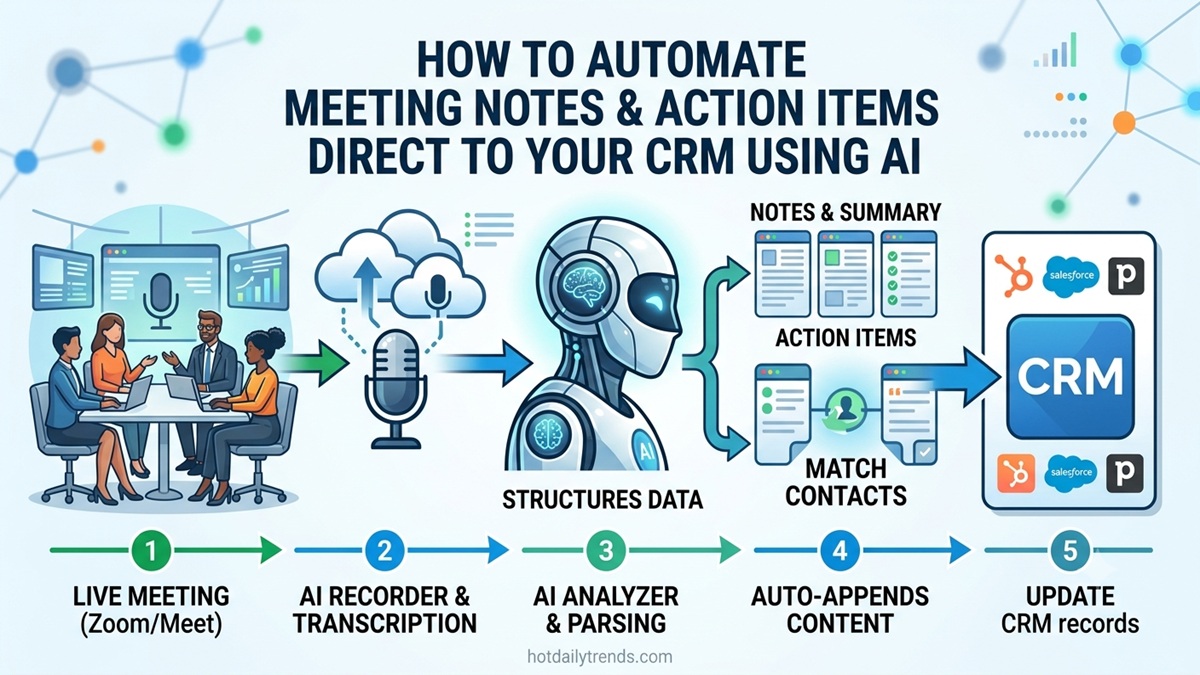
The data flows seamlessly from a live conversation into an organized client profile through four distinct phases:
[1. Meeting Ends] ➡️ [2. Transcript Sent] ➡️ [3. AI Extraction] ➡️ [4. CRM Updated]
  (Zoom/Meet)          (Via Webhook)          (ChatGPT API)         (HubSpot/Salesforce)
| Phase | Tool | Action | Data Handled |
| 1. Capture | Meeting Recorder | Generates complete raw transcript | Raw text of everything spoken. |
| 2. Trigger | Make.com Webhook | Watches for the “Meeting Completed” event | Triggers the automation sequence instantly. |
| 3. Process | ChatGPT API | Structured extraction and summarization | Isolates summary, timeline, and exact tasks. |
| 4. Sync | CRM Integration | Matches client email and appends notes | Updates contact/deal timeline automatically. |
Step 1: Set Up Your Meeting Recorder Trigger
First, ensure your preferred AI recorder (e.g., Fireflies or Fathom) is set to automatically join your calendar invites.
Inside Make.com, create a new scenario and choose the trigger module for your recorder (for example, Fireflies.ai -> Watch New Transcripts). This module will output a JSON payload containing the meeting title, date, participant emails, and the full transcript text.
Step 2: Pass the Transcript to ChatGPT for Advanced Analysis
Add an OpenAI -> Create a Completion module to your scenario. You do not want a generic summary; you need structured data that your CRM can read.
Use this highly strict System Prompt to program the AI’s behavior:
System Prompt: You are an elite executive assistant integrated with a corporate CRM. Analyze the following raw meeting transcript. Break your output into exactly three clearly defined sections using clean markdown headings:
Executive Summary
(A 3-sentence high-level overview of the meeting goals and outcomes)
Core Discussion Points
(Bullet points highlighting major topics covered, objections raised, and decisions made)
Action Items & Assignments
(A clear bulleted list formatted as: [Task Name] – Assigned to: [Name] – Deadline: [Mentioned Date or “Not Specified”])
Do not include conversational filler. Keep it objective and highly professional.
Step 3: Match the Meeting to the Correct CRM Contact
Before you can log the notes, the automation needs to find the correct profile in your CRM.
- Add your CRM module (e.g., HubSpot -> Search for a Contact).
- Configure it to search using the participant emails gathered from Step 1.
- If a match is found, pull that contact’s unique Contact ID. (Optional: You can add an extra path to search for a “Deal ID” if the meeting is associated with an active sales pipeline).
Step 4: Update the CRM Timeline Automatically
Add the final execution module (e.g., HubSpot -> Create an Engagement/Note).
Map the unique Contact ID you found in Step 3 so the system knows exactly where to put the note. Then, in the “Body” or “Notes Content” field of the module, map the markdown output generated by the ChatGPT module in Step 2.
Click Turn On on your scenario. The next time you close out a client call, your CRM will populate with immaculate, perfectly formatted meeting logs within 60 seconds of the call ending.